
• Home
  • Get My Restaurant Listed
OpenMenu Help
  • Home
  • Get My Restaurant Listed

How do I tax menu items differently?

/1. Account Settings /How do I tax menu items differently?
  • August 17, 2017
  • OpenMenu

OpenMenu Ordering gives you full control over how menu items are taxed.  Multiple tax blocks can be created and applied to your menu.  We simplify the process by letting you define a single, default tax block, which is automatically applied to all menu items.

Steps:

1. Access the Taxes via the main dashboard for OpenMenu Ordering
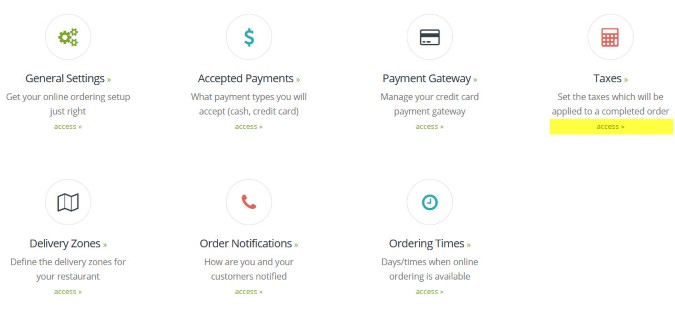
Ordering Tax Manager

2. You will now see the Tax Manager.  To add a new tax click the Add New button located above the taxes.

note: the default tax is highlight by a blue “default” label.  This tax will be automatically applied to all menu items.

3. Enter a tax name, the tax rate and if you want this to become the default tax.  Press Save and you’re done.
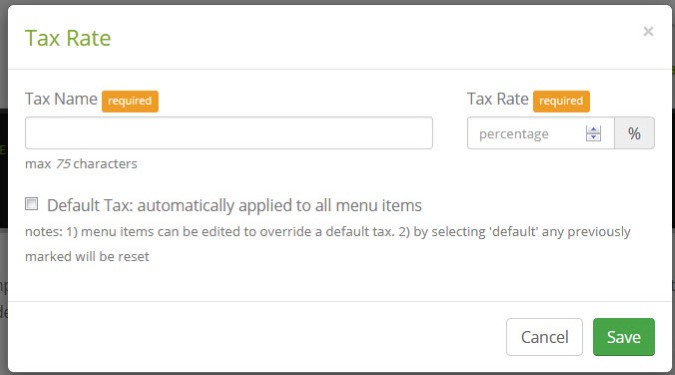
Tax Dialog

4.  Default taxes are automatically applied to all menu items with no explicitly defined tax.  If you need to override the tax for any menu item just edit the menu item.
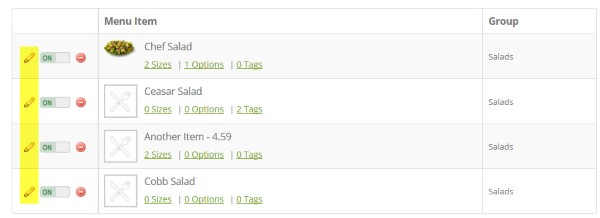
Select a new tax rate and press Save
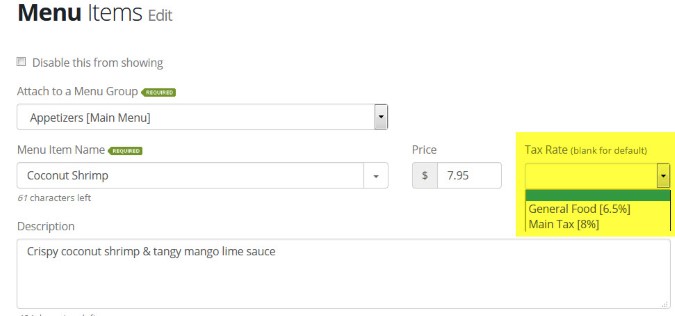
Menu Item Tax

Related Articles

  • Creating a vanity URL / vanity ID for your restaurant

  • Changing or adding a new credit card to your account

  • Editing How Many Restaurants I Manage

  • How do I manage multiple restaurants in my account?

  • Updating Your Restaurant’s Map Location

  • How to use your domain with our website

Latest Articles

  • How do I tax menu items differently?
  • Embedding OpenMenu Ordering in Your Website
  • Getting Started with Online Ordering
  • Connecting your Yext Account to OpenMenu

Popular Articles

  • Displaying Your OpenMenu in Facebook
  • When / How Do I Submit My OpenMenu
  • Adding Your First Restaurant
  • Supported Languages by our Menu Translator

Need Additional Help

Looking for help and couldn't find an article here? Please contact us and let us help.

© 2009 - 2017, Open Menu, LLC All rights reserved.